Compatible with Chrome and Edge
Instruction Guide
We have a simple tutorial guide which explains the features of the software extension and what each button inside the extension does. Read our tutorial and welcome guide on how to use the extension to the fullest. Use all the features of this browser software.
If you are interested in other web extensions to install, you might wish to check out the Microsoft Bing Search with Rewards extension.
Microsoft Bing Search with Rewards Extension
It allows you to complete daily offers to get points.
Track the number of points you have currently and the rewards you can redeem with these points.
The ways to get points & get rewarded is search with Bing, browse with Microsoft Edge and shop at the Microsoft and Windows stores to earn rewards.
Sponsored Link:
Other useful extensions
Another extension which would be useful to install is the iCloud bookmarks extension.
It allows to keep your Chrome bookmarks on Windows synced up with the Safari bookmarks on your iPhone, iPad, and Mac.
iCloud will store your website bookmarks so it is accessible even on your iPhone and Mac.
Try these other two extensions and see if it will boost your daily productivity.
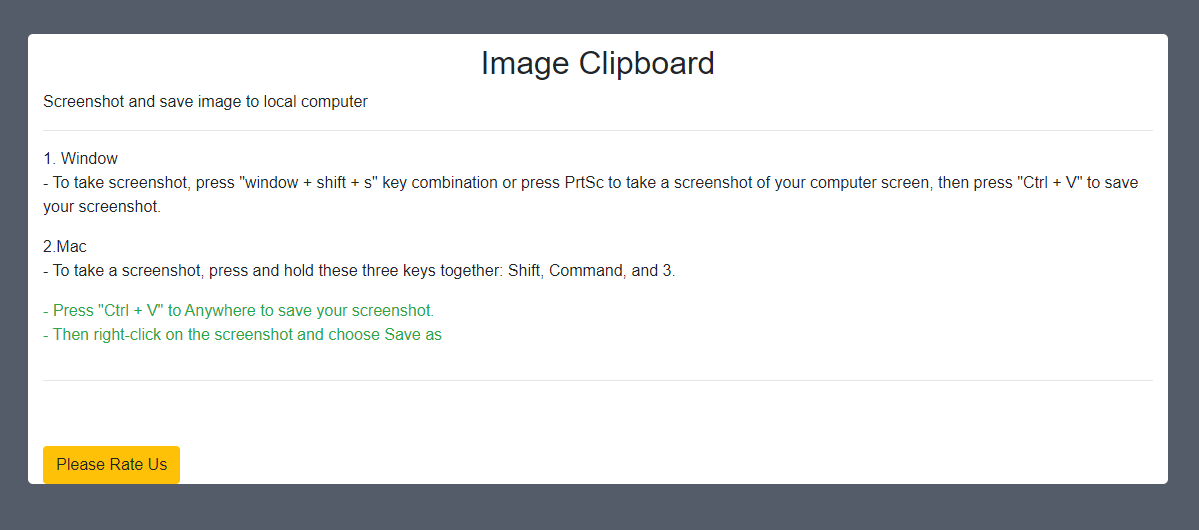
You can take a screenshot of the computer screen, then press Ctrl + V to paste your image into the Clipboard application. You can edit (add text, add highlight frame). After that, you can download it to your computer or save it on Google Drive.
Features:
Install and open.
- After installing the extension. You click on the extension icon to begin using this online clipboard.
You can use the Snipping Tool to quickly grab screenshots on Windows. It's a built-in tool that's been around since Vista and is still present in Windows 10.
You can also use the Print Screen key on your keyboard, which is the same thing as pressing CTRL+PrtScr. This will copy your screen to your clipboard for pasting later.
If you want to save an image of your entire desktop, press Win+PrtScn (or Print Screen). This will save the image as a PNG file to whatever folder you have open at the time.
Lightshot
Lightshot is a free-to-use desktop screenshot tool that supports all major operating systems including Windows, Linux, and MacOS. It has an intuitive user interface that makes capturing screenshots a breeze. This tool offers a host of features such as delayed capture, fullscreen capture mode, hotkeys support, and more. Lightshot lets you share your screenshots on social media platforms like Facebook, Twitter, Google+, etc.
Snagit
Snagit is another popular desktop screenshot tool that will help you take screenshots of your desktop's entire screen or just a particular section of it. This tool comes with a wide range of editing tools to make sure your captured images look exactly the way you want them to be displayed on the screen. Snagit also allows users to annotate their captures with text boxes and shapes before sharing them across multiple platforms including social networking sites like Facebook or Twitter, etc.
Skitch
Skitch is another popular desktop screenshot software that offers a simple user interface with minimalistic design elements
Tutorial:
- Install the Extension
- After installing the extension, click on the icon on the toolbar.
Sponsored Link: